Part 11 - Screen Slam (Snippet Tuning)
Once again, just to remind what we are talking about :D this is screen slam in the game, this popping icon with text underneath:
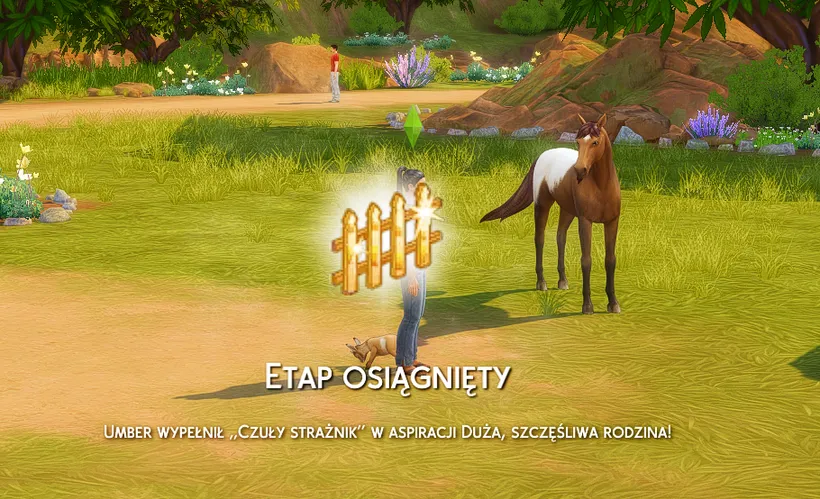
In game tuning of Screen Slam is done with Snippet Tuning. This one does not have SimData, just tuning file.
For aspirations we use Screen slam for:
- Milestone Completion (so aspiration level completion)
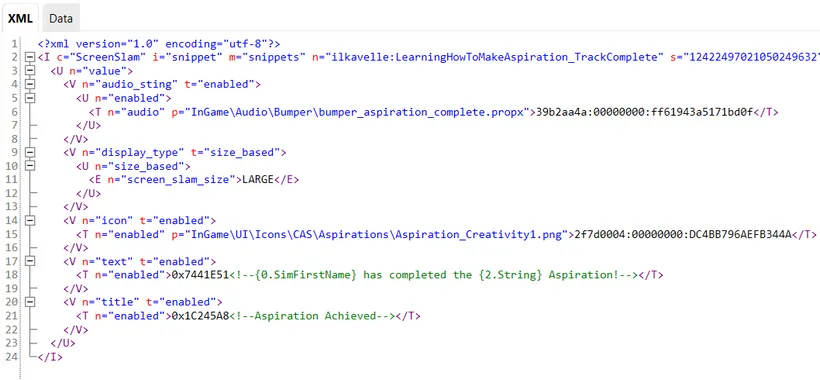
- Entire Aspiration Track Completion - so at the very end, and the only difference is this one is bigger and has different text below, informing about completing the entire aspiration.
You can just duplicate the screen slam code, taking examplary TuningID from the Aspiration Tuning.
Tuning file structure
Section titled “Tuning file structure”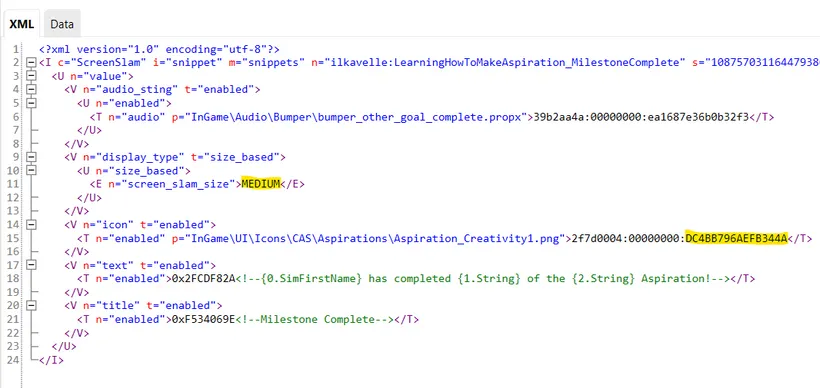
-
Audio - this is an audio sound. Personally, I never change that, because I don’t create audio sounds.
-
Display type - size
-
Milestone complete uses Medium
-
Track complete uses Large
-
-
Icon - I copied here again the Instance of our new aspiration icon, the same one I used in the Aspiration Track Tuning.
-
Text - I also don’t change it here. I just make sure the correct strings is for Milestone Completion and for Track Completion.
For the comparison, below picture of the Track Complete:
Creating your own aspiration
Section titled “Creating your own aspiration”I created 2x Snippet Tunings:
- 1st for Milestone Completion
- 2nd for Track Completion

Now go to Aspiration Tunings. Within each Aspiration Tuning copy the TuningId of created Snippet tunings.
For levels 1-3 it should be Milestone Complete.
For level 4th, or simply the last one, it should be Track Complete.
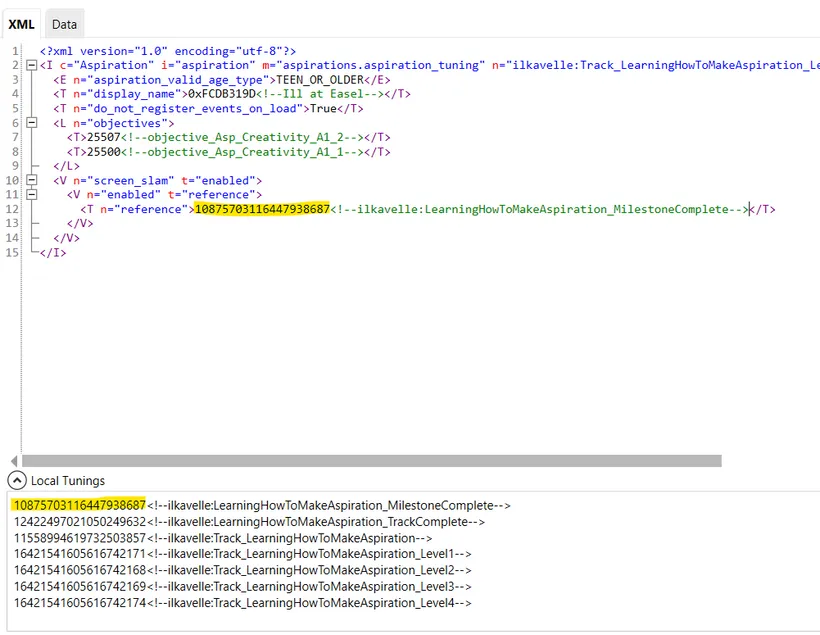
This change is done only in the Tuning file, so you don’t need to make any changes within SimData this time.
Thank you for learning with me :)
Back to Part 10 Back to the index On to Part 12
Originally posted on ilkavelle’s Patreon as part of her Simsmas Modvent Calendar, and collected in the Mod It Yourself series, where you can ask questions in the comments.