Part 2 - Text (Strings)

Today I will show you how to change the text appearing in mod. It’s very easy, and some of you probably already know this from translating. But also text plays a very important role in mods, so I need to show it.
Text in programming is called String. And more precisely, String is a data type used to represent text. To change it in mods, we will look for the files called String Tables.
This tutorial will work for any changes in the text, but also for translating the mod to other language.
Let’s start :)
-
Open the mod you want to modify
Section titled “Open the mod you want to modify”Let’s practice on my Buy Explorer Supplies mod, which has almost only string tables in it.
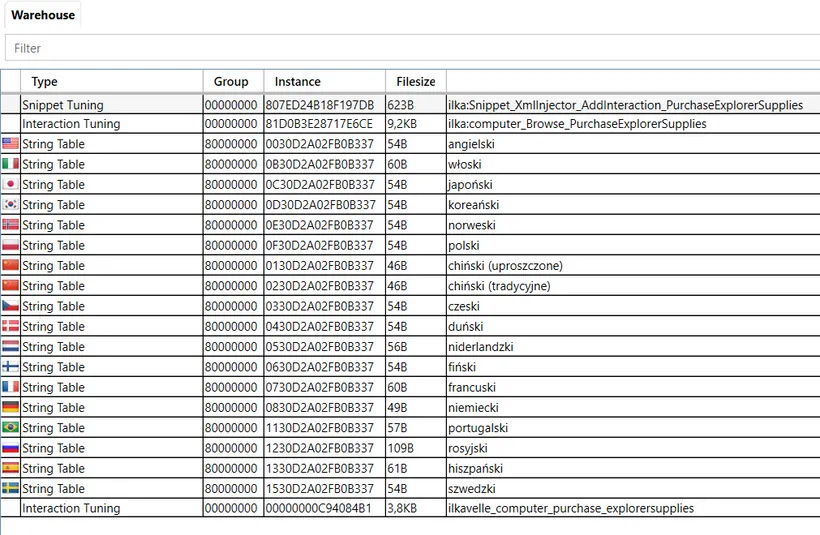
As you can see, there are String Tables for each language (sorry, names are in Polish, but you can see the flags. You always see them in a language chosen in your S4S settings).
When I create a mod, I write a text in English and then copy it to all other languages.
*For anyone curious, how to do it - there is this quick option in S4S to copy string tables to all languages:
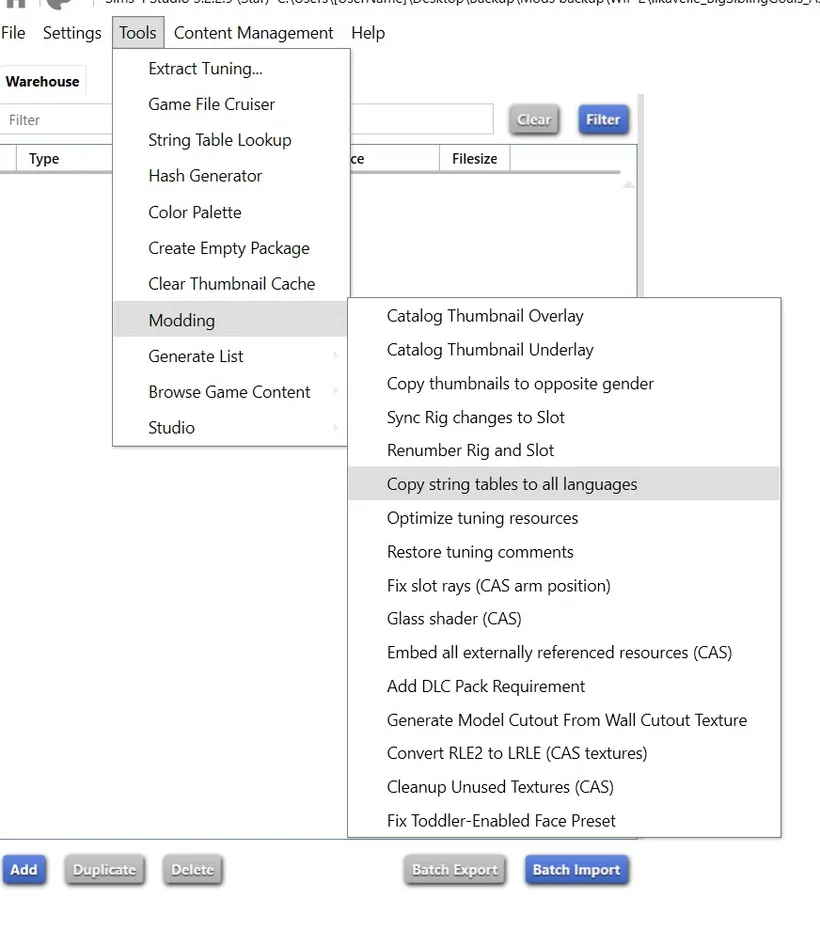
Then text can be translated to other languages. The game will show only the text from the String Table for the language that you have set in your game. If you play in German, it will show the text from German String Table.
-
Find and click the String Tables you want to change
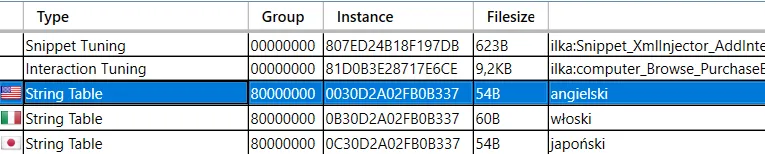
Section titled “Find and click the String Tables you want to change”If you change the text for your own purposes only, it is enough then to change only the strings for your language. I have a game in Polish, but for the tutorial purposes I will change the English strings.
On the right side, you’ll see the text under the tab Text (marked with yellow):
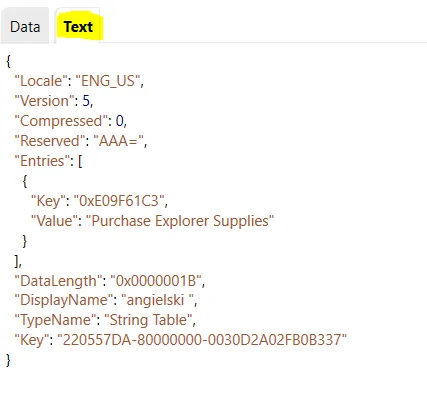
In this mod, there is just one text - the name for the interaction “Purchase Explorer Supplies” :) But of course in other mods there is more text.
-
Go to Data tab
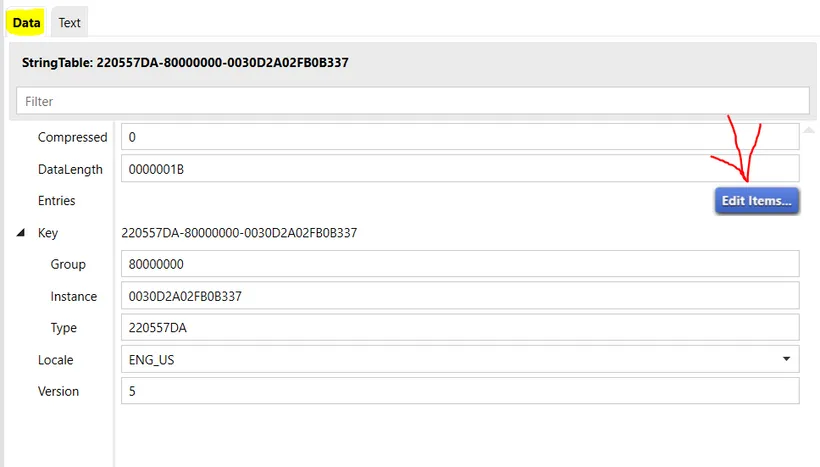
Section titled “Go to Data tab”Now change the tab and go to Data tab (marked with yellow below) and then click Edit Items (pointed with red arrow below):
-
Change the text you want
Section titled “Change the text you want”After clicking Edit Items, you’ll see this view:
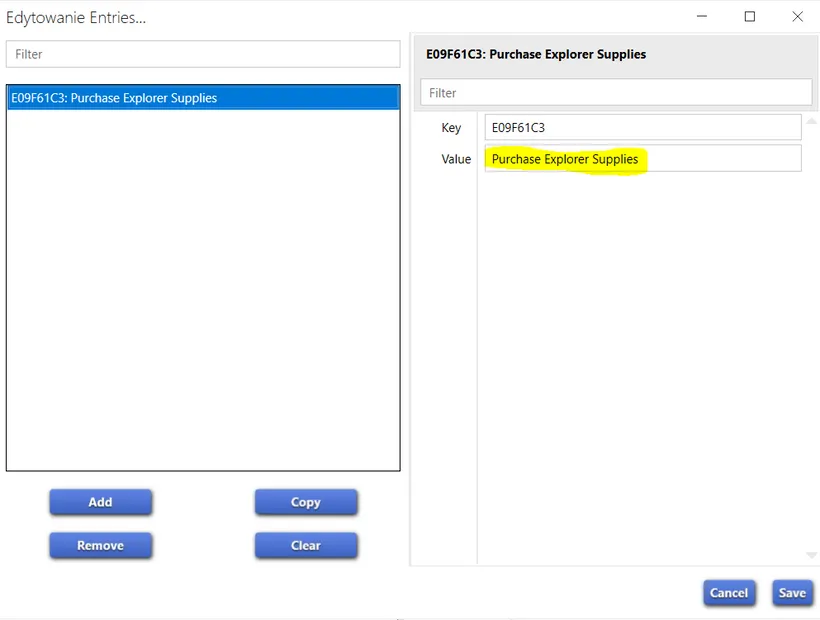
On the left side there is a list of all strings in this String Table. Here only 1, but usually there is more.
On the right side you can change the details of this string. To change the text, edit text in Value space (marked with yellow above).
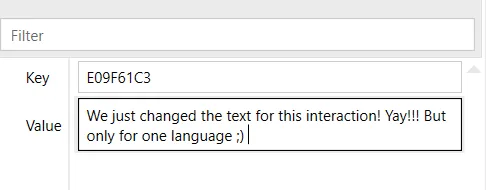
Now change the text.
I entered this new text in the Value space ;)
-
Save everything
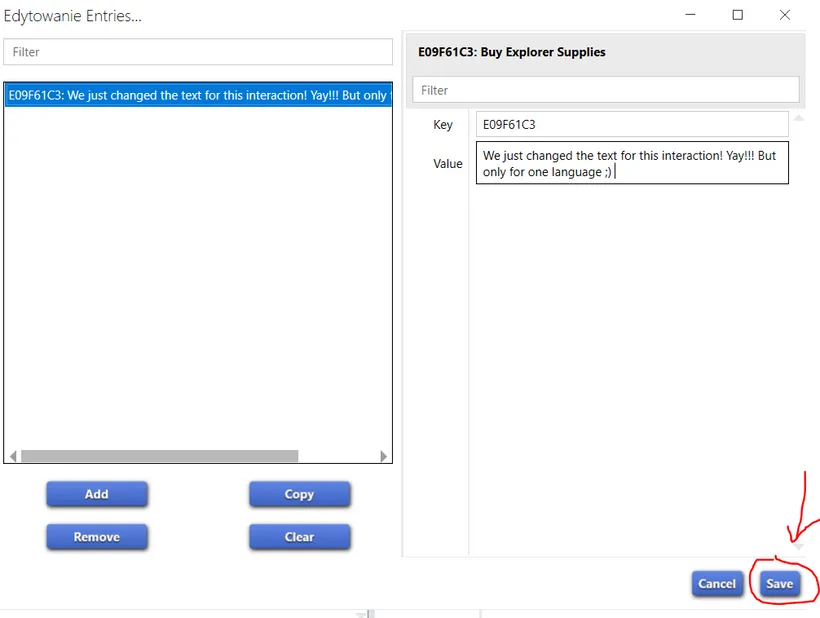
Section titled “Save everything”First, save the string change, by clicking on Save button in the right down corner of the window:
Then remember to save entire mod:
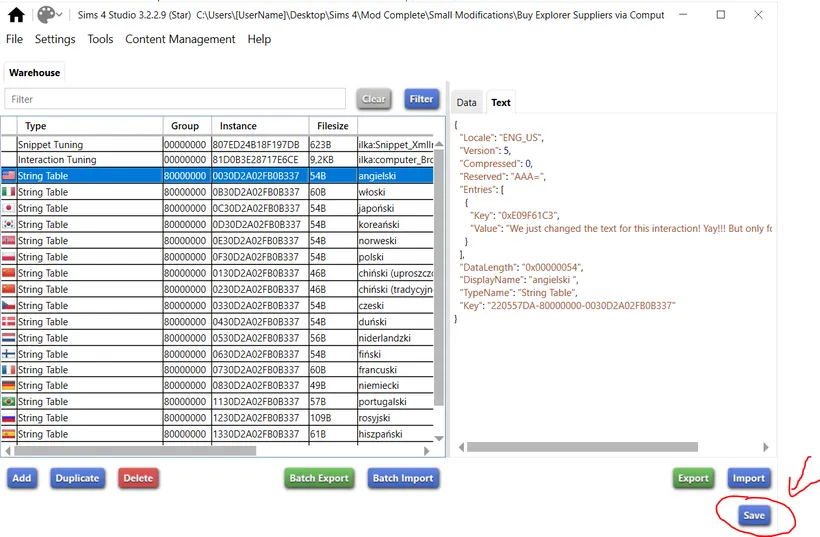
You can see here also, that the text within Text tab now also changed.
After saving, you can close the mod.
-
Check your changes in the game
Section titled “Check your changes in the game”And here it is, the interaction for which we changed the name ;) It works in the same way as before, only the text appearing for it changed.
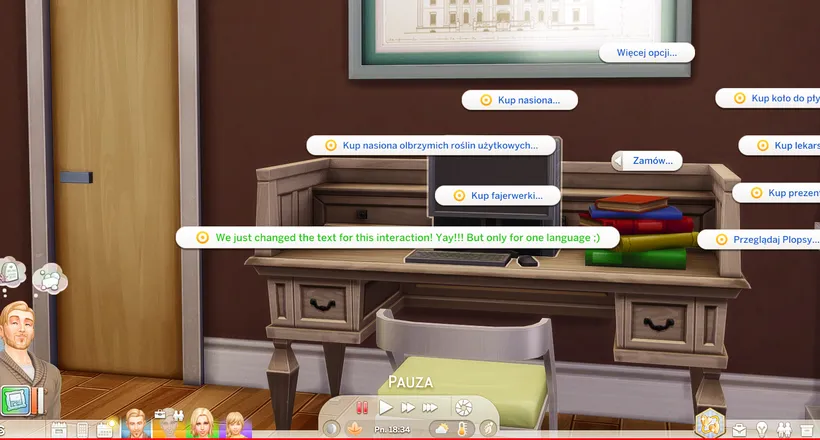
Last note
Section titled “Last note”You can use this method for making translations. In this case you need to open a String Table for a language to which you are translating, and in the Value space put translated text.
That’s all for today :)
Let me know if there is any specific topic that you would like me to cover!
Back to Part 1 Back to the index On to Part 3
Originally posted on ilkavelle’s Patreon as part of the Mod It Yourself series, where you can ask questions in the comments.