Part 6 - Modding basics

Today I’d like to show you some basic things about creating mods and how to start. I will show my ways. It’s possible that we modders do it in various ways (even I do it differently depending on what I’m working on :D also I am constantly learning). This will be my tips, if you find better ways, that’s great! :) Also, as the name says - it’s all basics. But it will allow me to later go more quickly through other topics.
- Export of all game files (tuning)
- Adding new file (tuning) to the package (2 ways)
- Instance and Tuning Name
- SimData
- How to find a file that we look for
- LOT 51 Builder
1. Export of all game files (tuning)
Section titled “1. Export of all game files (tuning)”After every patch, or new pack installed, I export all the files and I keep them for some time. This is useful to have possibility to compare files, how they changed after the patch. I prefer to keep the export at least to have comparison between 2 big patches.
So how do we export?
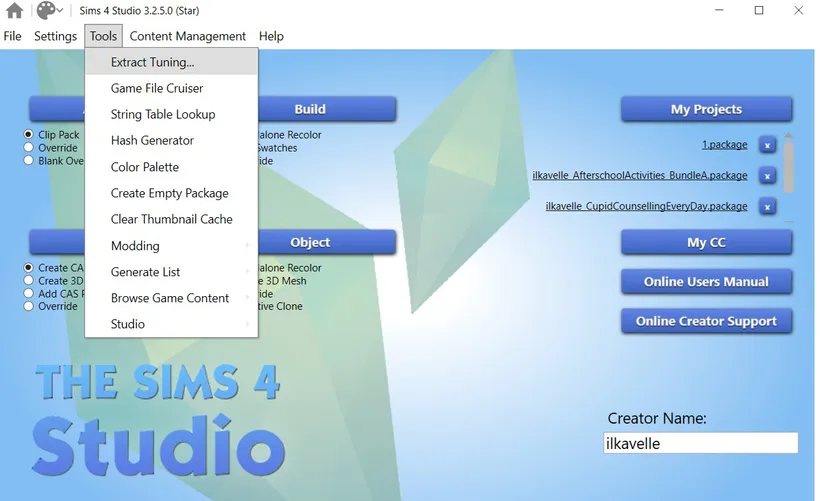
Open Sims 4 Studio, go to Tools and click on Extract Tuning…
Mark Use Subfolders and Extract All, and click Export.
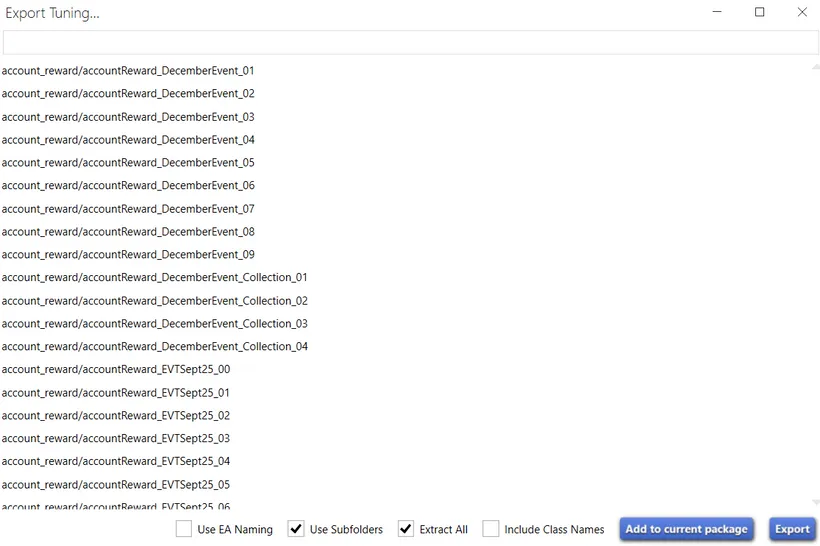
Choose the folder where you want to export the files and then wait till the extract is finished.
2. Adding new file (tuning) to the package
Section titled “2. Adding new file (tuning) to the package”First to start creating new mod, you need to open Sims 4 Studio go to Tools and Create Empty Package:
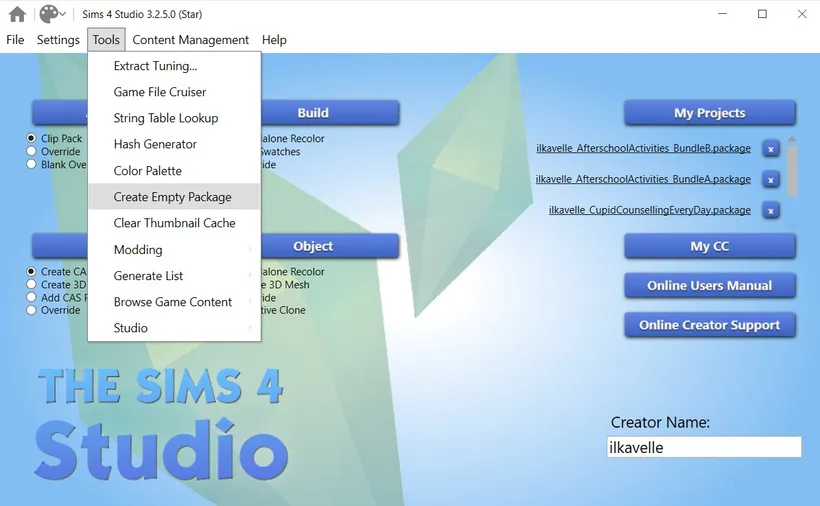
Adding new tuning - 1st way
Section titled “Adding new tuning - 1st way”You can now add new file type, clicking on Add button. And then choosing the file type you need, here Aspiration Track Tuning, give a temporary Instance (we’ll change it later) and click OK.
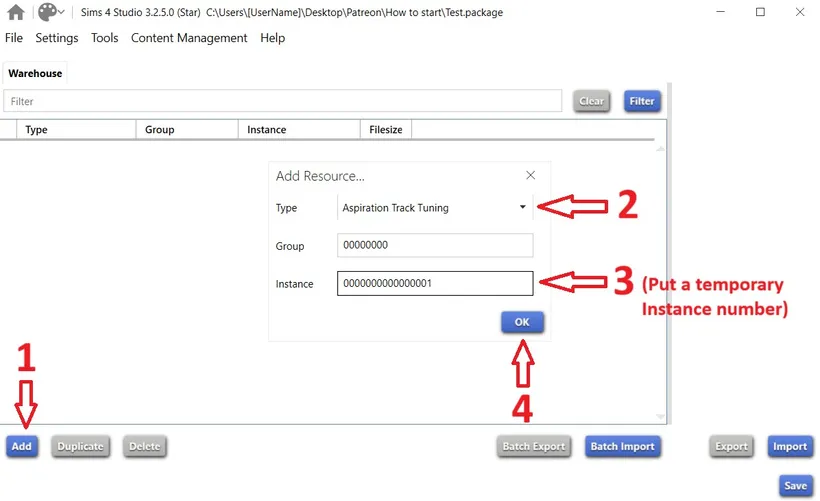
But this will generate for you completely empty tuning. This is why I do it differently.
Adding new tuning - 2nd way
Section titled “Adding new tuning - 2nd way”Again go to Tools and Extract Tuning…
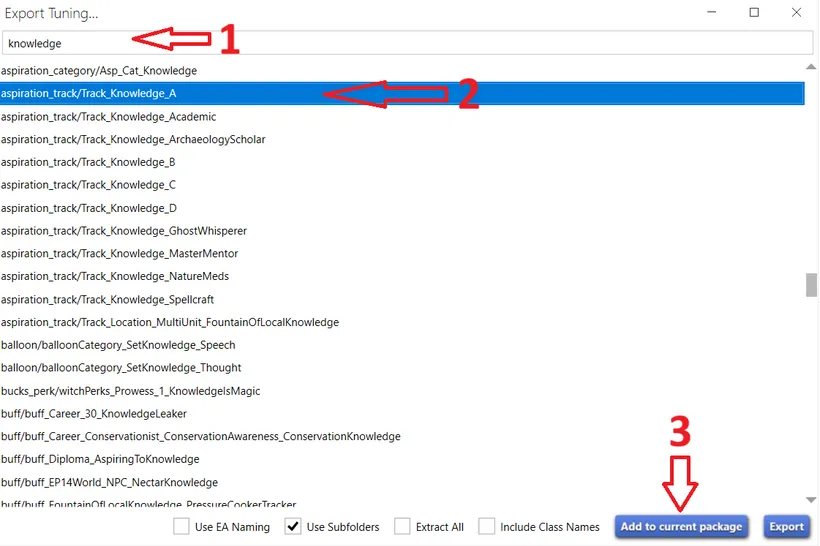
Search for a tuning you need. You can try with typing a name, or tuning ID, if you know it. When you find a tuning you need, click on it (2), and click on button Add to current package (3).
You will get this view. I wanted to start with creating Aspiration Track Tuning, so after I added an aspiration track for Knowledge aspiration from game, I got these 2 files below (Aspiration Track Tuning and its associated SimData file).
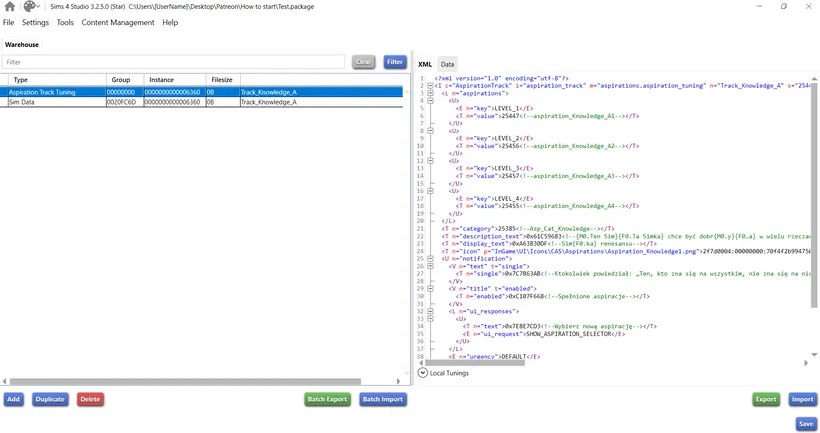
Now, when Aspiration Track Tuning is chosen, click on Duplicate button. You’ll get the same windows as after clicking on Add, to Add Resource (as in a 1st way). Change the Instance again to something temporary and click OK. Now, this tuning file was duplicated, so you have a new Aspiration Track Tuning, with the same name, but with different (temporary) Instance. But with the difference to the first method, when you open this new tuning file you’ve just added - it is full with all information that Aspiration Track Tuning should contain - and you will just need to replace it with your own things.
3. Instance, TuningId and Tuning Name
Section titled “3. Instance, TuningId and Tuning Name”When we have this new tuning file added, we have to name it and automatically give to it new Instance and new Tuning ID. Tuning ID of a file is very important and should be unique, because it will be used for the reference in other files (it works in the same way as we were giving reference to Strings).
How to change name, Instance and Tuning ID in Sims 4 Studio?
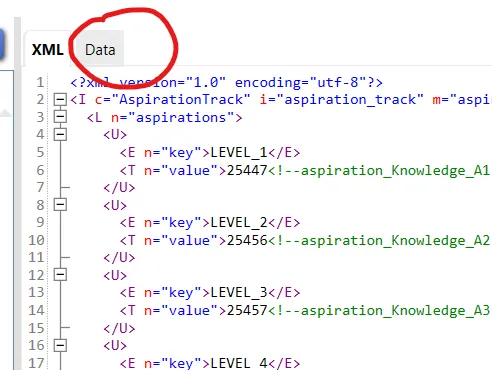
Click on the file you want to give a new name, and on the right go to Data Tab.
You will see the view below. Change ONLY the name with this method:
CreatorName:TuningType_TuningName
(I usually also add a mod name to the files names).
e.g.:
ilkavelle:aspirationTrack_OurNewAspirationForLearning
The ”:” symbol after the creator’s name is very important because thanks to it, S4S will automatically generate new Instance and new Tuning ID for your tuning file:
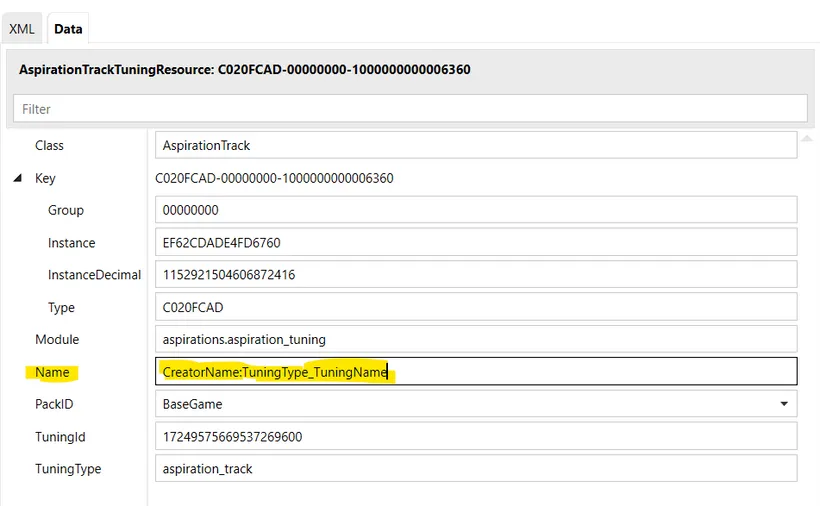
If you don’t use the ”:” sign, the Instance and TuningId will stay the same. Of course, you can change it manually, but there is a risk that at some point you’ll get some duplicates. And it’s important for TuningId to be unique.
Once you have set the name (and Instance, and TuningId), you can check it also in Tuning file and Sim Data here:
Tuning file - you have name (n) and id (s) at the very beginning:

SimData file - here you only have name:
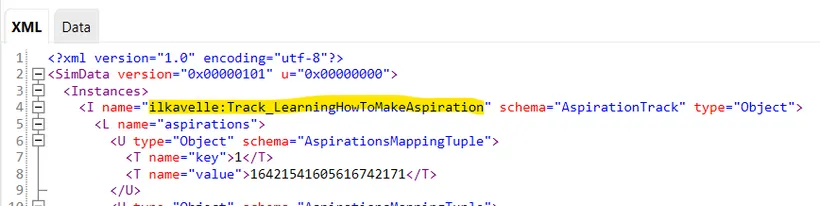
4. SimData
Section titled “4. SimData”So what SimData file is?
SimData is an auxiliary file that contains display and metadata for game content, such as the visual and textual elements of a Sim’s buff or a mod’s features. It works in tandem with other tuning files (like from our example Aspiration Track Tuning) to ensure everything appears correctly in the game’s user interface. Without the corresponding simdata file, the associated game elements, like the icon and text, will not show up properly.
Not all Tuning has a corresponding SimData, but most have.
With my second method of adding a new Tuning to the mod, SimData is also automatically generated. Now you need to copy it (using Duplicate button) but you have to always give to it the Instance from the Tuning you’ve just created. Both Tuning file and SimData file must have the same Instance.
You do not change Group number.
After the SimData is copied, with a correct Instance number, I highly recommend to also rename it to have the same name as Tuning file.

Finally I delete the original 2 files, because I don’t want to override them. I only leave my own files.
5. How to find a file that we look for
Section titled “5. How to find a file that we look for”In my 2nd method I extracted a file I was looking for. But how do I know, what file I need in first place? Well, that can be tricky :D Names are not always very obvious.
First, before I created my first mod, I analysed someone’s else mod. I checked how exactly files are connected with each other, I made a “map” for the Event (because event was a first mod I created).
I also analysed a lot of files from the extracted tuning.
The LOT 51 Builder can be also helpful. It has an Import EA Tuning option, very useful for searching files you want to check out.
Usually if I see in the game something that I want to recreate, I check for the name of it. Name of the interaction, name of a buff, any text. Then I search for this text. Either within Sims4Studio (when you go to Tools, there is String Table Lookup). Or using String Search.
When I find the text, I have now its Key (string reference number):
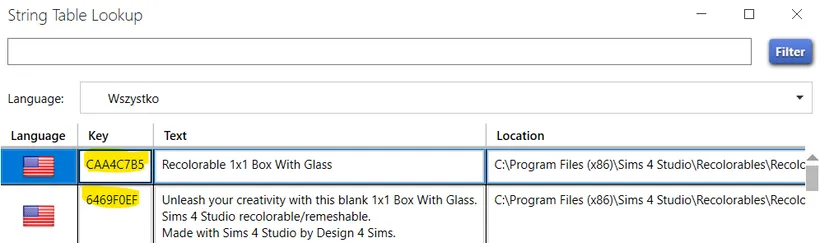
Now I can research my Extracted folder with this key, typing always “0xAAAAAAAA”, just instead of this AAAA put the Key, so here e.g. 0xCAA4C7B5. And when I find a file, I have also its Tuning ID and I can use it now :D A bit complicated, but sometimes this was the only way I could find what I needed ;)
I highly recommend using this tool to create yours mods. It has entire library of game files, it will guide you in creating a proper structure for Tuning files and to keep all required elements. When I’m not sure how I could achieve something, I look for answers with this tool.
I will not show you how it works, just wanted to show you it exists and can be very helpful. And with this tool you can actually add new resources using the 1st method.
This is all for today :) Let me know if you have any questions, or doubts. I’ll try to answer them :)
Thank you!
Back to Part 5 Back to the index On to Part 7
Originally posted on ilkavelle’s Patreon as part of her Simsmas Modvent Calendar, and collected in the Mod It Yourself series, where you can ask questions in the comments.