Part 8 - Aspiration Track Tuning

Firstly we’ll see the Aspiration Track Tuning, and its corresponding SimData file.
I will show it based on Painter Extraordinaire Aspiration.
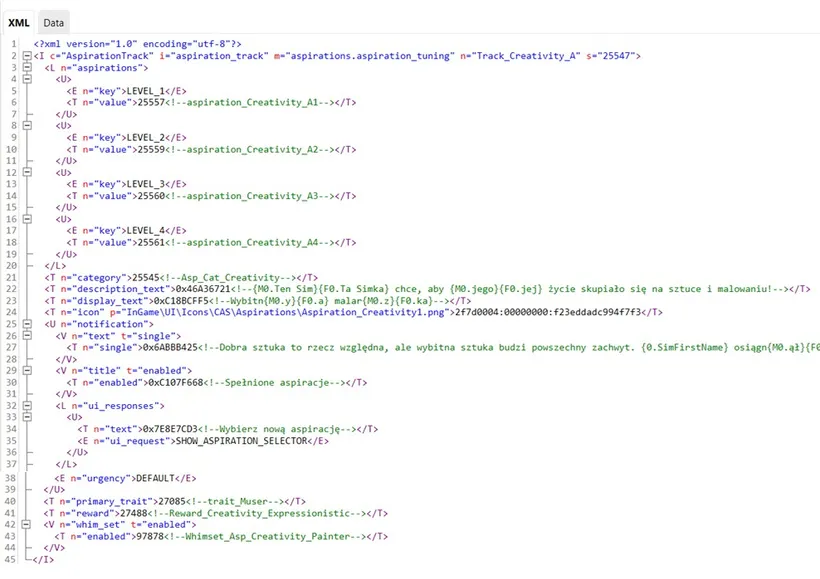
Let’s take a look at full Aspiration Track Tuning:
And here you have the corresponding SimData file (in SimData we only change the data within the green frame marked below):
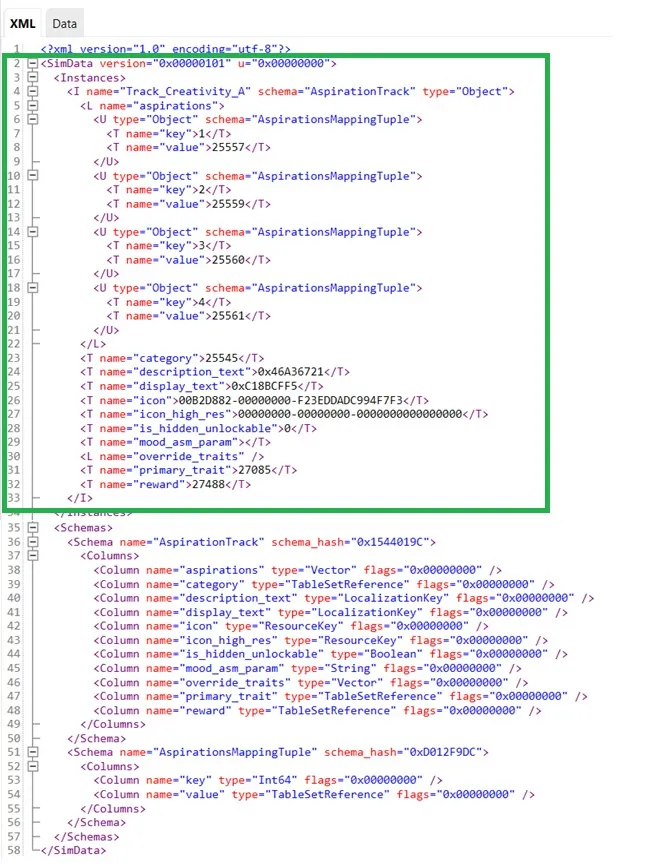
Basically we only change values in black colors, and we can also change text in green color (these are the names of used tuning, or text that in under string reference - like comments).
We never change values/text in violet, red and blue - unless you know what you do :D
In Aspiration Track Tuning we define:
Section titled “In Aspiration Track Tuning we define:”-
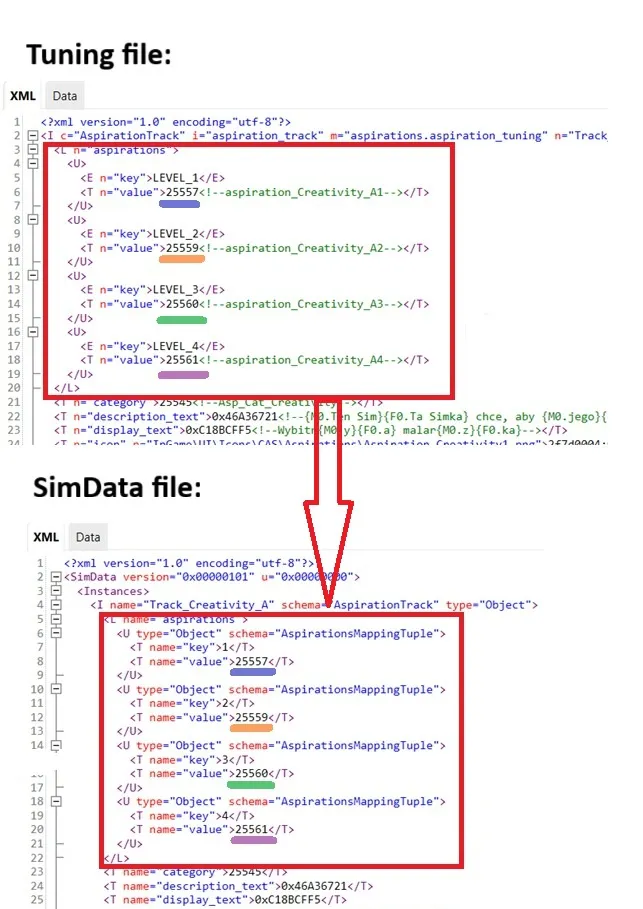
Aspiration Tuning - this is aspiration level, stage. You can see here: LEVEL_1, LEVEL_2, LEVEL_3 and LEVEL_4. For adults there are usually 4, but can be less. You can create more than 4 levels, but it will not show up in the UI correctly (example: Mother Plant Resurrection Aspiration, you have there 6 levels, but you can see only 4. The 5th and 6th are only visible when you start the given level).
Once you have your Aspiration Tunings created, you replace the black values with new values - appropriate TuningId.
It’s important that these values are the same in Tuning file and in SimData file.
-
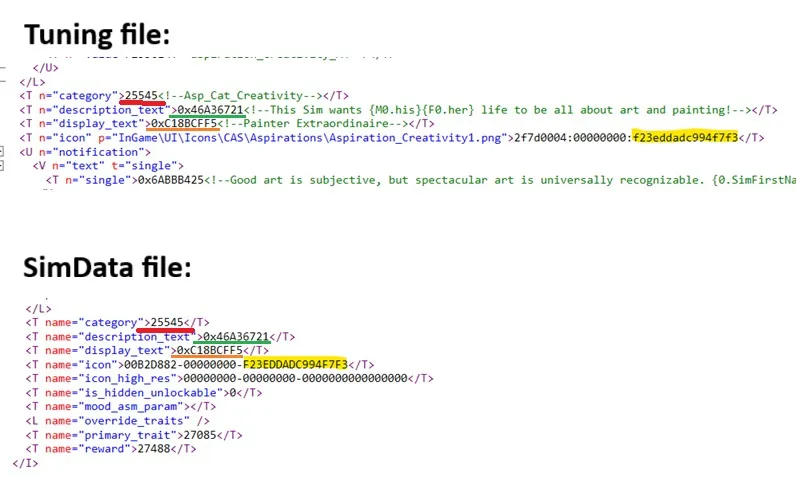
Aspiration category - under which category this aspiration should appear? Creativity, Family, Popularity etc… You can use categories existing already in the game. I recommend using only the ones from Base Game. If you use category that was added with a pack, for example category for Teens aspirations - this aspiration will only appear if a person has High School Years EP installed.
Again, this value must be the same in Tuning file and in SimData file.
-
Description text and Display text - so these are aspiration description and aspiration name. And of course these are strings.
Again, this value must be the same in Tuning file and in SimData file.
-
Aspiration Icon - well, I think I don’t need to explain this :)
Again, this value must be the same in Tuning file and in SimData file.
On the below picture I just show how the values are the same in Tuning file and SimData. Also please note, that for icon you should change only the last values (marked with yellow) in both files.
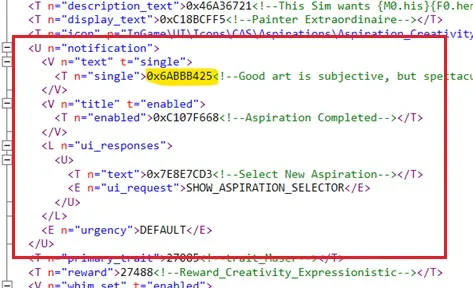
- Notification text - this is the notification shown upon the aspiration completion. I only change text value (yellow mark). Other values can be left the same. And, of course, this is also a String. Notification text is not represented in SimData.
-
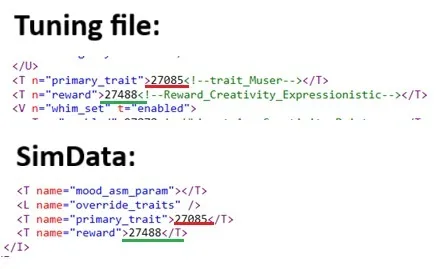
Primary trait - this is the trait that is given automatically to Sim when choosing the first aspiration. It’s usually the same for all aspirations from given category. If I create an aspiration for Creativity category, I leave this trait mentioned here “Muser”, because it’s used in all aspirations from this category.
This value must be the same in Tuning file and in SimData file.
-
Reward - this is tuning that defines a reward after completing an aspiration.
This value must be the same in Tuning file and in SimData file.
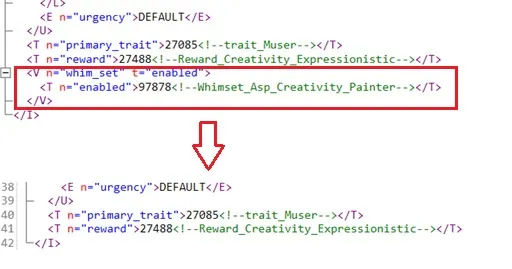
- Whim set - it defines the list of wants your Sim will get when having this aspiration. Whim set is not represented in SimData. And you can completely delete this entire section. Whim set is not mandatory for an aspiration.
Creating your own Aspiration Track Tuning
Section titled “Creating your own Aspiration Track Tuning”Now create your own Aspiration Track Tuning. If you don’t know how, go to Modding basics.
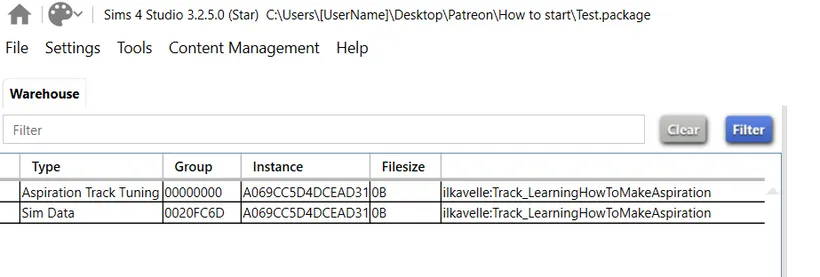
Make sure Tuning file and SimData file have the same Instance, TuningId and Name.
I have this outcome now, I deleted the original aspiration, as I don’t want to override it. I just left my own:
This is it for today! Next I will go through each Tuning, explaining it etc. But since today was quite long, for the weekend I’ll make a break from tutorials :)
Thank you for today! And let me know if something is not clear.
Back to Part 7 Back to the index On to Part 9
Originally posted on ilkavelle’s Patreon as part of her Simsmas Modvent Calendar, and collected in the Mod It Yourself series, where you can ask questions in the comments.