Part 9 - Icons & Images
For aspirations we will create icons, but some other mods, for example careers, require adding images. This tutorial will work for both.
Icons are quite important part of each aspiration, but also very easy :D I will not show you how to create an icon or an image, but how to create a package file that will be read as icon in the game.
Also, usually I just use icons existing in the game and I just recolor them ;) I don’t have skills to create nice icon on my own. I am also too lazy to search for icons in the game files. I use the ones exported here. There are icons from all packs. Huge credit to all people that do it!
Once you have your icon ready for upload to package, Add Resource within your package and choose DST Image. Make sure Instance is unique. This Instance will be later used as reference in your package in other tunings.
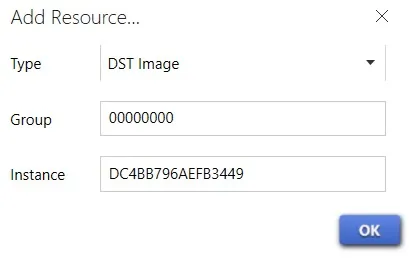
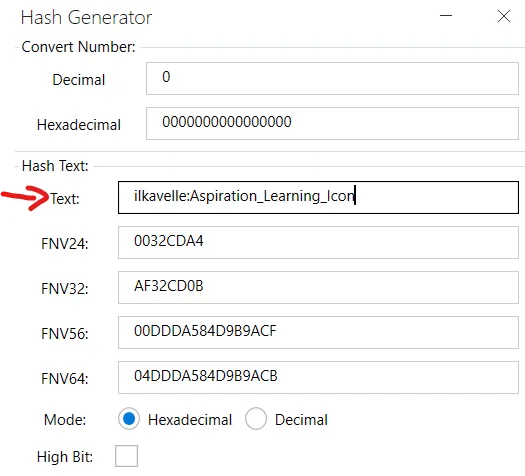
You can generate a unique Instance using Hash generator within Sims 4 Studio (Tools > Hash generator). Write the text and it will convert it:
Then Import the image for icon.
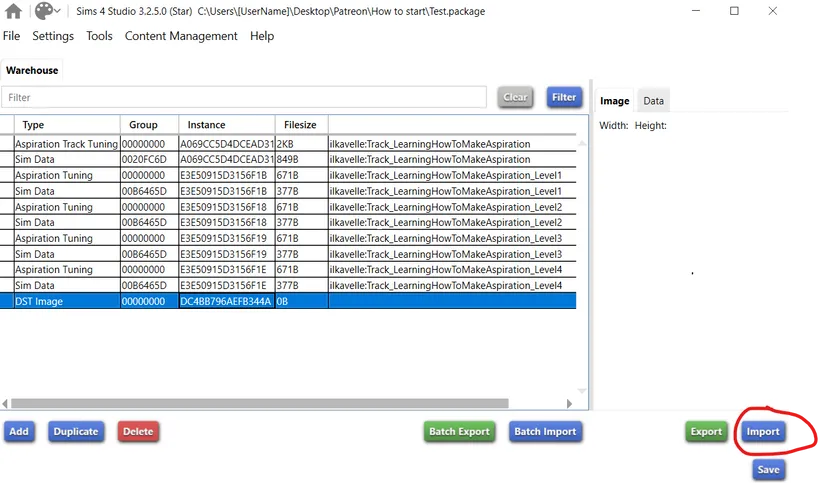
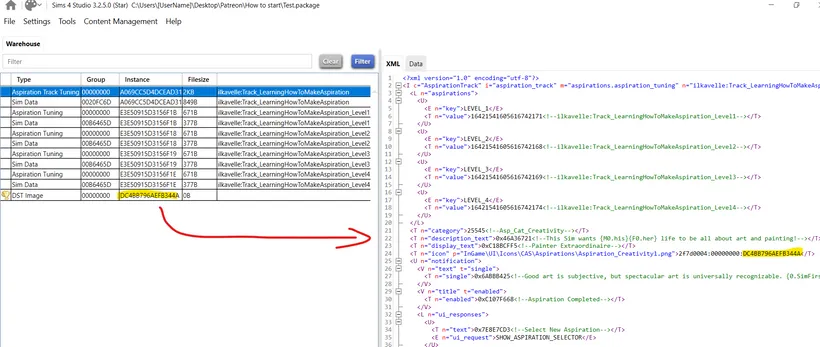
Once it’s ready, you can now put the Icon Instance where necessary. For now we can only use it in Aspiration Track Tuning (and SimData! don’t forget about it!):
Ok, that’s all about Icons, I think :D
As always, drop any question in the comments, I’ll try to answer :)
Thank you!
Back to Part 8 Back to the index On to Part 10
Originally posted on ilkavelle’s Patreon as part of her Simsmas Modvent Calendar, and collected in the Mod It Yourself series, where you can ask questions in the comments.